Descriptions and Examples for the POV-Ray Raytracer by Friedrich A. Lohmüller
logo
    3D Animations with POV-Ray
        Some basics and samples on animations.
Italiano Italiano
Français français
Deutsch Deutsch
Home
- 3D Animations Gallery
- POV-Ray Tutorial

  3D Animation Tutorial
   Index of Content
  0. Basic Knowledge
     1. Basic Sample
     2. From Images to Video
     3. Basic Terms
     4. Animation Commands
  I. Cyclic Animations
     1. Rotating Objects
     1.2. Planets in Orbit
     1.3. Clock Animation
     2. Rotating Camera
     3. Western Wheel
         Problem
     3.1. Rolling Wheels
     4. Gears
     4.1. Roller Chain
     4.2. Bike Chain
     5. Swinging Pendulum
     5.1. Newton's Cradle
     6. Spiral Pendulum
     7. Connecting Rods
     8. Psychedelic
        + Op-Art
     9. Counters
        + Countdowns
    10. Folding of a Cube
  II. Animation Paths
      with Spline Curves
     1. Spline Curves
     2. Animation Paths
                                           

From a Serie of Animation Images
from POV-Ray to a Video File

How to use Dave's Targa Animator (DTA) (free!)
to convert a serie of single numbered images to avi video file.
Also as a base to create an mpeg file with other video programms.

There's no way to produce an avi, mpeg or gif file directly with POV-Ray.
POV-Ray produces only a serie of numbered images for making a gif file or a video file.
Here a fast and easy way to get a video file: (Assuming your using Windows!)

Step 0:   Go to the archive of DTA at
                   ftp://ftp.povray.org/pub/povray/utilities/dta/
                   and download Dave's Targa Animator (DTA) "dtawin.exe":

DTA_home

Then unzip the file "dta30.zip" to a separate directory.
Move all numbered animation images from the POV-Ray output (sphere01.bmp, sphere02.bmp, ... sphere30.bmp) to the same directory.
(Alternativly move the DAT Windows files "dtawin.exe" and "zlib.dll" to the directory of your numbered images)

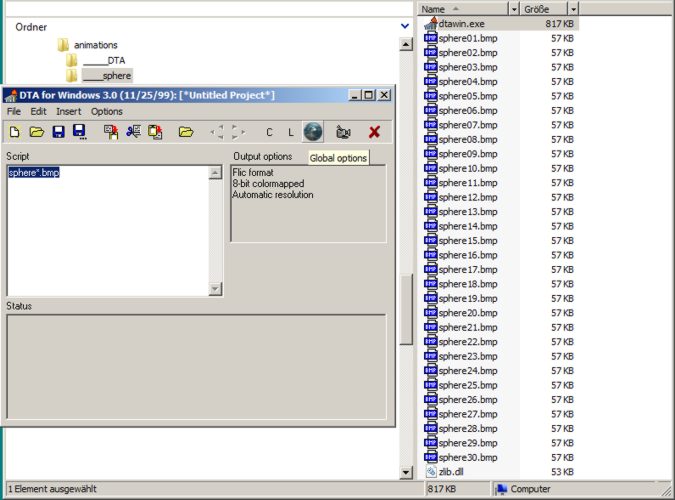
Step 1:   Start Dave's Targa Animator by double clicking on the file "dtawin.exe".
                  Fill in the field "Script" the base name of your images,
                  were the numbers must be replaced by the wildcard sign "*":

DTA_step1

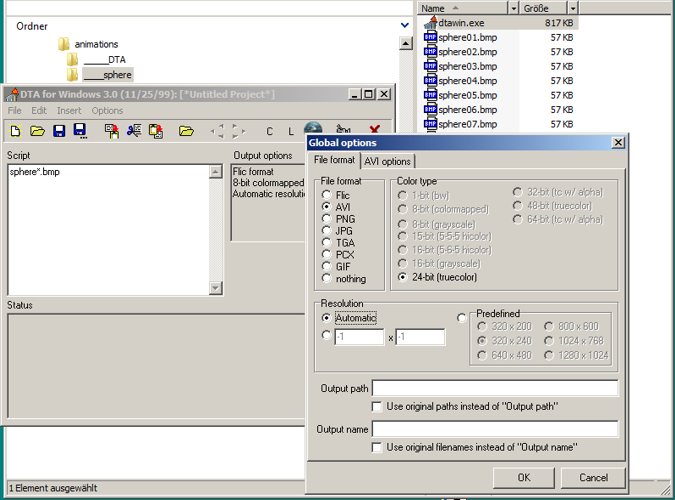
Step 2: Choose global options (the blue ball button) and select the file format "avi" and click on "OK" button.

DTA_step2

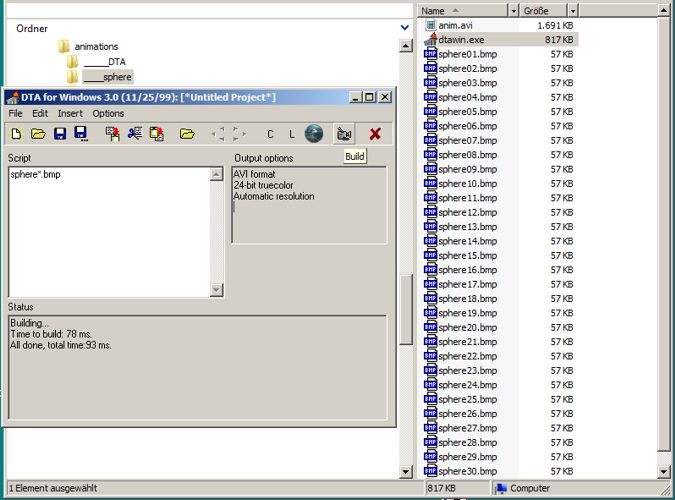
Step 3: The field "Output options" show now "AVI format".
                  Now click on the camera button to build the video file.
                  You will see the progress in the lower left field.
                  And there will appear a new file named "anim.avi" in your image directory.

DTA_step3


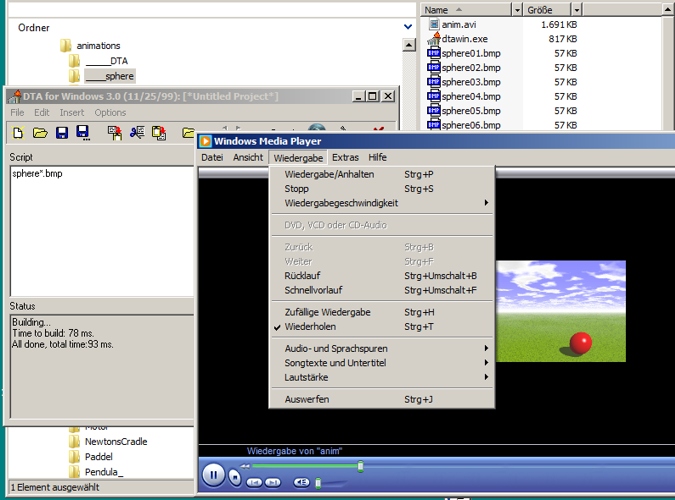
Step 4: To see the video with the Windows Media Player just doubleclick on the file named "anim.avi".
                 To see a cyclic animation in an endless loop you will have to click at CTRL-T
                 or activate the endless loop in your player options.

DTA_step4


top

© Friedrich A. Lohmüller, 2009
email email: Friedrich.Lohmueller_at_t-online.de
homepage:http://www.f-lohmueller.de