Home
- 3D Animations Gallery
- POV-Ray Tutorial
3D Animation Tutorial
Index of Content
0. Basic Knowledge
1. Basic Sample
2. From Images to Video
3. Basic Terms
4. Animation Commands
I. Cyclic Animations
1. Rotating Objects
1.2. Planets in Orbit
2. Rotating Camera
3. Western Wheel
Problem
3.1. Rolling Wheels
4. Gears
4.1. Roller Chain
4.2. Bike Chain
5. Swinging Pendulum
5.1. Newton's Cradle
6. Spiral Pendulum
7. Connecting Rods
8. Psychedelic
+ Op-Art
9. Counters
+ Countdowns
10. Folding of a Cube
II. Animation Paths with Spline Curves
1. Spline Curves
2. Animation Paths
|
 |
A First Sample
About scene files, animation ini files and the clock values. |
|
For an animation with POV-Ray you'll need only 2 files:
1. a POV-Ray scene file (extension: .pov), which uses the clock value and
2. a POV-Ray amimation initialisation file (extension: .ini), which defines the clock value
and repeatedly calls the scene file with changed clock values.
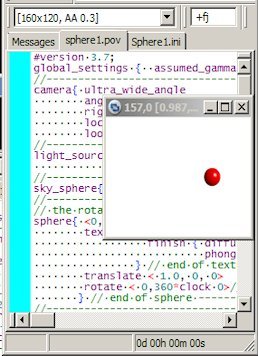
Step 0: We start with building a simple scene file like this:
|
"sphere.pov"
#version 3.6;
global_settings { assumed_gamma 1.0 }
//---------------------------------------
camera{ ultra_wide_angle
angle 75
right x*image_width/image_height
location <0.0 , 1.0 ,-3.0>
look_at <0.0 , 0.0 , 0.0> }
//---------------------------------------
light_source{ <1500,2500,-2500>
color rgb<1,1,1> }
//---------------------------------------
sky_sphere{ pigment{color rgb<1,1,1>}}
//---------------------------------------
// the rotating sphere:
sphere{ <0,0,0>, 0.25
texture { pigment{ rgb<1,0,0> }
finish { diffuse 0.9
phong 1}
} // end of texture
translate < 1.0, 0, 0>
rotate < 0,360*clock 0>// <-!!!!
} // end of sphere ---------------
//----------------------------------- end |

|
|
|
Note: The sphere is moved to the right side by the statement
translate < 1.0, 0, 0>. Then it will be turned in this animation around the
y axis by rotate < 0,360*clock 0>.
(Be sure to translate before you rotate it! Otherwise the result will not be very fascinating!)
The "clock" value (it's zero by default!)
will be defined by an animation ini file.
Test renderings: We can start rendering this scene file like a normal pov file for test renderings.
We don't need to declare a value for "clock". The default value of "clock" is zero. To see
how the scene i.e. in the middle of our animation looks like, we can replace temporarily the word "clock" by i.e. "0.5".
|
|
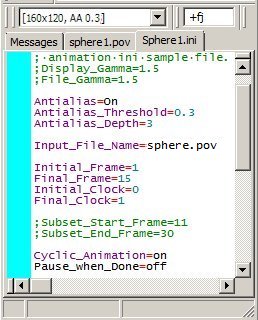
Step 1: We need to create an animation ini file:
Note: The ini file must be in the same directory
as the POV-Ray scene description file!
Use ";" instead of "//"
for comments in POV-Ray ini files!
"sphere.ini"
; POV-Ray animation ini file
Antialias=Off
Antialias_Threshold=0.1
Antialias_Depth=2
Input_File_Name="sphere.pov"
Initial_Frame=1
Final_Frame=30
Initial_Clock=0
Final_Clock=1
Cyclic_Animation=on
Pause_when_Done=off | |
|
|
|
|
Step 2: Starting the rendering of the animation
We select an appropriate render solution. For testing it would be a good idea to select
a small image size (i.e. "160 x 120") without anti aliasing ("No AA").
We start the animation by starting the ini file (not the pov file!!!!)
We start rendering with the ini file in the active window!
POV-Ray start rendering the file "sphere1.pov" with the "clock" value of 0
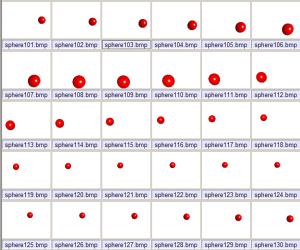
and saves the resulting image as frame #1 with the file name "sphere101.bmp".
Then the program calculates the next "clock" value (new clock = last clock + 1/Final_Frame,
here: 0 + 1/30) and starts rendering of our scene "sphere1.pov" again.
The output will be saved as "sphere102.bmp".
This continues until "clock" = 1 is reached with the output file "sphere130.bmp".
Any probems by starting animations with POV-Ray 3.6 running on Windows Vista?
Be sure that you have seen my hints about
" 10. Using POV-Ray 3.6 with Windows Vista "!
|
Thumbnail view of the resulting images ("frames"). |
|
|
Step 3: Post processing
POV-Ray is not able to save the output of an animation rendering in any other form then simply numbered frames.
We can use a fast graphic viewer with a slice show function to see our animations.
If we want to save our animations as animated gif, avi, mov or mpeg file, we need to use other programs.
|
The animation as an animated gif file.
|
|
To achieve this there is a great variety of freeware and shareware programs.
For making avi files we can use a shareware program like "Dave's Targa Animator v 3.0 - DTA30".
For making mpeg files we can i.e. use "avi2mpg1.exe" - this program is distributed under the GNU copyright.
Software and utilities for 3D animation we find i.e. here:
http://www.povray.org/resources/links/3D_Animation_Utilities/.
|
|